Written on December 16, 2008 by Bryan
Scenario: You have built an InfoPath form that you publish to SharePoint to be filled out in a browser-enabled form using Forms Services. This form includes a simple text field that accepts multiple lines of text and does not explicitly set a maximum number of characters. When you publish this form to SharePoint and map the fields to Site Columns, this field is mapped to a “single line of text” field, and the default max character length is set to 255. Any characters entered into the field above this length are truncated when the data is entered into the column in SharePoint.
I came across this scenario recently and had to do some digging to find out what the issue was and what the best way to solve it was.
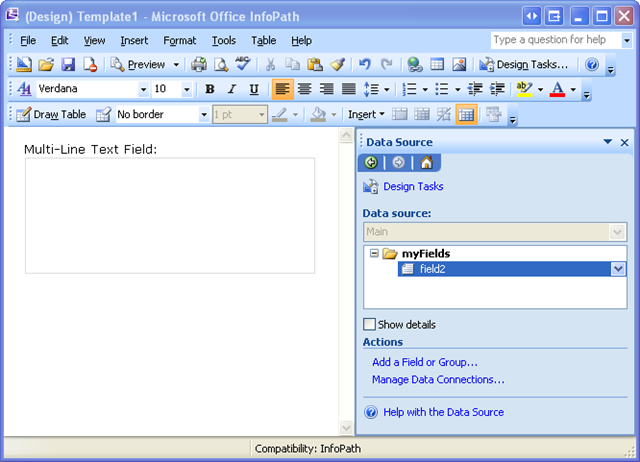
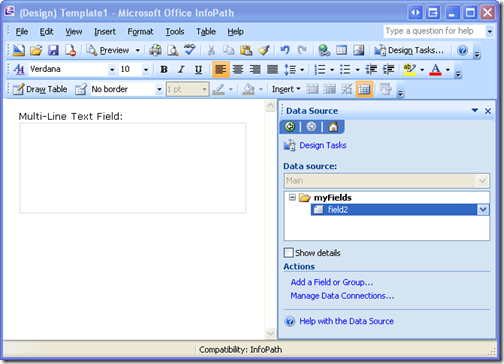
First, here’s a sample form that will produce this scenario:
The properties in InfoPath for this text box are as follows:

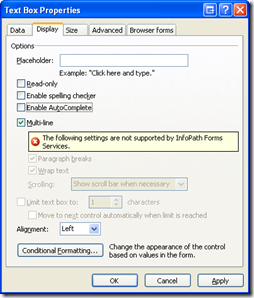
As mentioned above, publishing this form to a SharePoint Form Library and entering more than 255 characters into this field will result in truncating the contents of the field when it is stored in the column in SharePoint. This is (probably) not the behavior intended. One way to handle this is to just limit the length of characters allowed in this field to 255. By the way, this doesn’t appear to be as easy as clicking the “Limit text box to:” checkbox because, as you can see above, it is grayed out when “Multi-line” is selected. (You’d have to do some Data Validation using the string-length function — ugly.) Anyway, if you did this, it would eliminate the possibility of truncating the contents, but of course, you may actually want your users to be able to enter more than 255 characters. So what’s the solution.
Well, apparently when publishing an InfoPath form to SharePoint, it automatically maps “string” fields to “single line of text” fields. In order to map to a “multiple lines of text” field, you have to use an “XHTML” field, which is a “Rich Text” field in InfoPath:
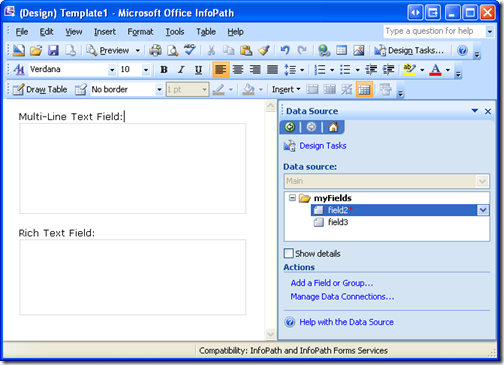
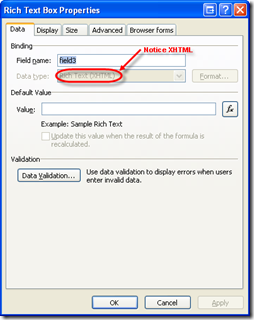

Publishing this form and mapping the Rich Text field to the column in SharePoint will result in setting the column to be “multiple lines of text” rather than “single line of text.” However, there is one small annoyance with this. Notice the message in the display properties above that says “Only full rich text without embedded images is supported in browser-enabled form templates.” Annoying. It means you get this stupid control on your form instead of regular plain text:

So how can have a regular text field and still map it to a “multiple lines of text” field in SharePoint. Here’s what I came up with.
- Create a regular text box (string) control in InfoPath.
- Create a rich text box (XHTML) field in InfoPath, but don’t display it on the form.
- Create a rule on the regular text box that sets the value of the rich text box to the current value of the regular text box.
- Map only the rich text box value to a column in SharePoint.
You should be able to handle steps one and two based on the screenshots above. Here are some quick screenshots to show you what I’m talking about for steps three and four.
On the regular text box (string) control, create a rule to set the value of the rich text box:

Finally, only map the rich text box value to a column in SharePoint (not the regular text box):

Notice the “plaintext” in parenthesis. The regular text box field won’t have that listed. I’m not even entirely sure what it means, but it seems to only show up for XHTML (rich text) fields instead of string fields.
This feels like a pretty roundabout way of getting what you want, but then again, the more I work with InfoPath and Forms Services, the more I realize that roundabout ways of getting what you want pretty much seem to be par for the course.
Posted in Development | Comments (1)
Written on September 2, 2008 by Bryan
As much as I thought I understood how Alternate Access Mappings work in SharePoint, it turns out I that pretty much had no idea. At work, we have been trying trying to configure a SharePoint web application to sit behind a load balancer (BIG-IP F5 Local Traffic Manager) with SSL enabled on the front side but terminated at the load balancer. We set up the F5 with an SSL profile and certificate on the client side but not on the server side. Basically we want HTTPS (port 443) on the front side, and HTTP (port 80) on the back side. The virtual server configuration looks like this:
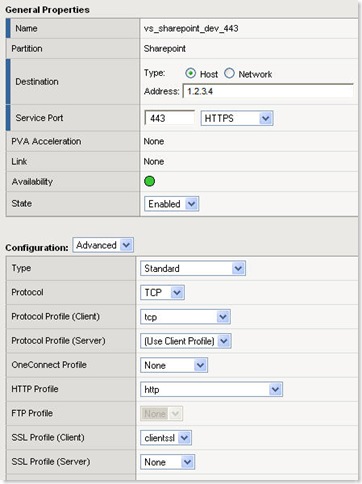
As for the SharePoint configuration, we were trying to just create the web application as follows:
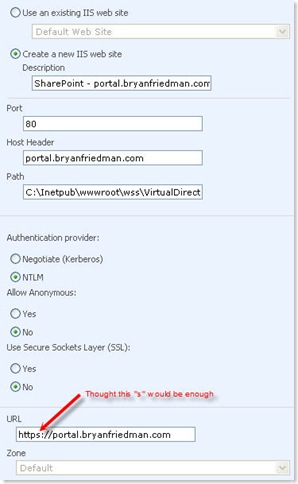
Well, the worst part about this is that it mostly worked. At first I thought everything was all good, but as we started to use the application, we noticed three things, the third of which was the most troubling:
- Response never returning from Ctrl-K user lookup
- Warnings around going to and from non-secure content
- Failure when creating lists!!
So, it was back to the drawing board. First, I found this discussion post which ultimately led me to the Holy Grail of Alternate Access Mappings postings. Without finding Troy Starr’s post entitled What every SharePoint administrator needs to know about Alternate Access Mappings (Part 1 of 3), I don’t think we ever would have been able to get the web application configured correctly. (His second and third parts are pretty helpful in general as well.)
So following his instructions, and his fabulous Alternate Access Mappings screenshots, we created a web application, extended it, and added the additional AAM so the table ended up looking something like this:
| Internal URL |
Zone |
Public URL for Zone |
| http://bryanfriedman |
Default |
http://bryanfriedman |
| https://portal.bryanfriedman.com |
Internet |
https://portal.bryanfriedman.com |
| http://internal.dmz.bryanfriedman.com |
Internet |
https://portal.bryanfriedman.com |
It felt like overkill to me, but it ended up working like a charm. There was just one more step…the load balancer.
Now instead of an F5 load balancer, Troy’s article described how to use a reverse proxy (ISA Server 2006) configuration in front of the web application. However, I knew this could work the same way as long as we could rewrite the host header value at the F5. Being that I am not exactly a network engineer, I had to poke around a little to find out how to do this, but I eventually found the following code for an iRule:
when HTTP_REQUEST {
if { [HTTP::host] equals "portal.bryanfriedman.com" }
{
HTTP::header replace Host "internal.dmz.bryanfriedman.com"
}
else { }
}
Once I had the network guys plug this iRule into the F5 configuration, everything started working like magic. The three problems we saw before disappeared and all requests and responses appeared to be working as expected. Three cheers for Alternate Access Mappings!
Now I can’t say I fully understand how AAMs work, but I definitely understand it better than I did before, and now I have more knowledge of F5s than I ever really wanted to. Anyway, hopefully the next person who tries to do something like this won’t run into the same problem because they will find this post (or Troy Starr’s post) and avoid my initial mistakes.
Posted in Administration | Comments (3)
Written on April 9, 2008 by Bryan
You might think this would be the correct way to add a field to a list default view programmatically:
string fieldInternalName = "MyField";
list.DefaultView.ViewFields.Add(fieldInternalName);
list.DefaultView.Update();
You’d be wrong.
This won’t work.
You might then try to update the list, or try to pass in the field itself to the Add method instead of the internal name. You might then try to do it with and without the Update method many times. Then you might search for code examples online where people are basically doing the same thing, only with a minor difference:
string fieldInternalName = "MyField";
SPView defaultView = list.DefaultView;
defaultView.ViewFields.Add(fieldInternalName);
defaultView.Update();
You might say to yourself "This is exactly the same thing I’m doing except I’m just using less code (and less memory)." Then you might decide you’ve tried everything else so why not just try this anyway? You will then replace your code with this version.
This will work.
Then you might open .NET Reflector and try to make some sense of why this works one way and not the other. You will not be able to. Then you close .NET Reflector feeling even more confused. Finally you will realize you just don’t understand SharePoint or .NET as well as you thought you did.
Posted in Development | Comments (1)
Written on February 29, 2008 by Bryan
I’ll of course be attending the Microsoft SharePoint Conference in Seattle all of next week. Many different people from my company are coming with me, so we plan to cover a lot of ground. Along with all the SharePoint specific sessions I will be attending, I’ll definitely be checking out the many sessions on topics related to other technologies used with SharePoint such as InfoPath, BI in SharePoint, PowerShell, the Community Kit, ASP.NET AJAX, LINQ, and more. I plan on live blogging some of the sessions internally, but I’ll definitely post at least some summaries of the useful sessions along with any juicy information right here for all the world to see. Stay tuned.
Posted in Conferences | Comments (0)
Written on February 15, 2008 by Bryan
I was looking at the best way to export and import a wiki page library within a site that is not specifically a wiki site. There are not a lot of good ways to export and import lists in general. The only two ways I am really even aware of are:
- Saving as a list template and using it to create a new list
- Using SharePoint Designer to export and import a specific list
Neither of these methods worked out very well when trying to migrate a wiki page library. A few problems arose when I tried both of them:
- The behavior that links the root folder of the document library to the Home.aspx wiki page breaks.
- It appeared that only some of the content was being exported and imported. I’m not really sure what would cause some content to export and some to not, but I speculated that this may have been related to having multiple versions of each page.
- Of course, the created and modified dates are not retained and the users associated with each page are not maintained. This didn’t matter so much in my case though.
I decided to resort to taking a look at the API and trying to use the object model to do the work. The content copying problem seemed easy enough to resolve using the SPItem.CopyTo method for each item in the source library.
SPDocumentLibrary srcWiki = (SPDocumentLibrary)srcWeb.Lists[srcWikiName];
Guid dstWikiGuid = dstWeb.Lists.Add(srcWiki.Title, srcWiki.Description, dstWeb.ListTemplates[“Wiki Page Library”]);
foreach (SPListItem item in srcWiki.Items)
{
item.CopyTo(dstUrl + srcWiki.Title + “/” + item.File.Name);
}
The content copied fine, but it still didn’t seem to fix the welcome page issue. Going to the root of the wiki page library would still take you to the Forms/AllItems.aspx page, the default view. It took some help from .NET Reflector to uncover how this behavior works when creating a Wiki Page Library through the UI.
Unlike site definitions which have special folders inside the 12 Hive under TEMPLATE\SiteTemplates, list definitions are defined as features. The “Wiki Page Library” list definition is associated with the WebPageLibrary feature. There are no DLLs associated with this feature, but rather a lot of XML that defines the entire library schema for wikis. However, when you create a Wiki Page Library through the UI, it appears that there is another feature that also gets activated called WikiWelcome. This feature does have a DLL that it uses with a class called SPWikiWelcomeFeatureReceiver. Ah, a simple feature receiver event handler. I used .NET Reflector to take a look. There is very little code involved.
public override void FeatureActivated(SPFeatureReceiverProperties properties)
{
SPWeb parent = (SPWeb) properties.Feature.Parent;
SPFolder rootFolder = parent.RootFolder;
rootFolder.WelcomePage = SPUtility.GetLocalizedString([…]);
rootFolder.Update();
}
I had actually stumbled across the RootFolder.WelcomePage by accident thinking it would solve my problem before I had even found this, but alas I had done a list.Update() instead of a rootFolder.Update() at the end so, of course, I missed the boat. However, now I see that this is really all there is to it. I added one extra line so that the library will be displayed on the Quick Launch if it was set to display like that on the original library, another thing that doesn’t seem to get copied over automatically. Here’s what I added:
dstWiki.OnQuickLaunch = srcWiki.OnQuickLaunch;
dstWiki.RootFolder.WelcomePage = srcWiki.RootFolder.WelcomePage;
dstWiki.RootFolder.Update();
dstWiki.Update();
The SPItem.CopyTo() method copies the whole item including versioning, so it should take care of the content issue as far as I have been able to tell so far. However, it doesn’t appear to solve the problem of the created and modified dates or the user who created the items getting copied over. Since it’s not that important, I didn’t handle this, but I could conceivably grab this data from the source list and explicitly set it on the new one if I wanted to try to make things exactly the same as the original list. I need to do a little bit more testing perhaps, but now I have a console app utility for migrating wiki page libraries from one site to another.
Posted in Development | Comments (0)
Written on February 14, 2008 by Bryan
These are two posts from my internal company blog that I felt were worth sharing publicly.
Deleting Master Pages from the Master Page Gallery
It’s not as easy to delete a master page from a site’s master page gallery as you might think. Simply clicking the “Delete” option from the drop down menu doesn’t work because you will almost always get this error:
This item cannot be deleted because it is still referenced by other pages.
You could spend a lot of time trying to find the pages that reference this master page, but you won’t find them because it’s highly possible that there are none!
Thankfully, SPD comes to the rescue (for once) allowing you to delete the master page using a fun workaround we found on this blog.
Just use SPD to open the site in question and find the master page gallery (under _catalogs/masterpage). Create a folder in here called “deleteme” and move the master page that you’d like to delete into the folder. Then delete the folder. Voila! It’s gone. Thanks SPD!
Getting the Account Name from a “Person or Group” Field
We actually found something useful in the Community Content section of an MSDN page. This doesn’t only apply to Workflow Task Properties either. Basically, this code snippet will convert the underlying string value of a “Person or Group” type field in a SharePoint list(which looks something like “12345#;Some Name”) into the correct account name in the form of “<Domain>\<Username>”.
SPFieldUserValue userValue = new SPFieldUserValue(workflowProperties.Web, retrievedFieldValue);
string userName = userValue.User.LoginName;
In this case the SPWeb is coming from the workflowProperties, but I think it just needs the one that the SPList lives in. Any SPWeb may even work.
Posted in Development | Comments (0)
Written on February 13, 2008 by Bryan
I had planned on live blogging much of the event on here, but it ended up seeming silly to do so. My colleagues and I did some live blogging of the sessions we went to and some of the keynotes on our company blog, but I did want to at least summarize some of the highlights here.
We arrived Sunday for a pre-conference session that I was frankly underwhelmed by. The one I had signed up for was not what I expected so I instead joined the session regarding the BizTalk Adapter Pack, which was actually quite compelling but not really directly related to SharePoint. Still, since I’ve had a minimal amount of experience with BizTalk, it was nice to get an overview of this stuff and we may find ourselves using it in the future.
The next day opened with Bill Gates’s keynote which I did write a post about as it was one of the more exciting events, at least for me. After that, I went to about five sessions over the next two days before we had to leave early and head home. Of the five, there were two that were absolutely phenomenal.
The first session I attended was called “SharePoint BDC Customization” and it was given by Nick Swan, Director at Lightning Tools Ltd., the makers of BDC Meta Man. This presentation was so good that I’ve had to add his blog to my SharePoint feeds. The Business Data Catalog has got to be one of the most powerful features of SharePoint, allowing you to connect to external data services and use SharePoint to expose the data in lists and web parts. I had always considered the BDC a read-only mechanism as Microsoft touts it to be, but Nick showed us that it can be configured for write backs as well.
After the presentation, I went up and talked to Nick about database permissions and authentication aside from managing the permissions as part of the Shared Server Administration configuration screens. This was one thing I know we are concerned about as far as using it at work. He said that at least for SQL Server there are a couple of different ways to handle this. One way is PassThrough (which sounds like it will work well with kerberos) using the username that is logged into SharePoint. The other was RevertToSelf which I didn’t understand entirely but it sounds like it’s using the App Pool user. I guess there are a couple more, and unfortunately none of them are too well documented it sounds like. I’m also not sure how this would work with, say, Oracle. Nick said he is writing a book which goes into detail about this stuff but it may not be out until July. However he said I could always drop him an email and check his blog. You can see his presentation slides here.
The final session I went to was also fantastic. It was regarding the Visual Studio Extensions for Windows SharePoint Services 1.1 (VSeWSS 1.1). The release was announced at the conference and details posted here. Chris Johnson and Alexander Malek from Microsoft gave this presentation and posted the demo on their blog. I got so excited about these extensions, which make developing SharePoint solutions is Visual Studio so much easier, that I couldn’t wait to come and try them out. The WSP editor in particular is just incredibly useful.
The keynotes on the second day were about Office Live and Office Communications Server. Office Live is kind of neat, but it doesn’t provide much to a large enterprise at this point. OCS on the other hand looks really neat. We just recently got IM at our company so we are a couple years away at least from implementing an entire OCS solution, but if we can get there it sure will be cool. Integrating our phone habits into our general daily use of Outlook and IM is really game changing I think.
The last thing to mention is that we came across a great workflow product at the exhibits by Nintex. We are definitely going to look into using this product as an alternative to giving our business users access to use SharePoint Designer as this alternative is all browser based.
This technology just continues to amaze and challenge me. I’m really looking forward to going to the SharePoint conference in March. Stay tuned.
Posted in Conferences | Comments (0)
Written on February 11, 2008 by Bryan
I know it’s not much, but I was able to snap some pictures from the keynote at the ODC on the first morning. All I had was my no-zoom no-flash iPhone camera (at a Microsoft conference no less), so they aren’t exactly great. I figured I’d post them anyway just to liven up the content. Plus it feels very Engadgety of me.
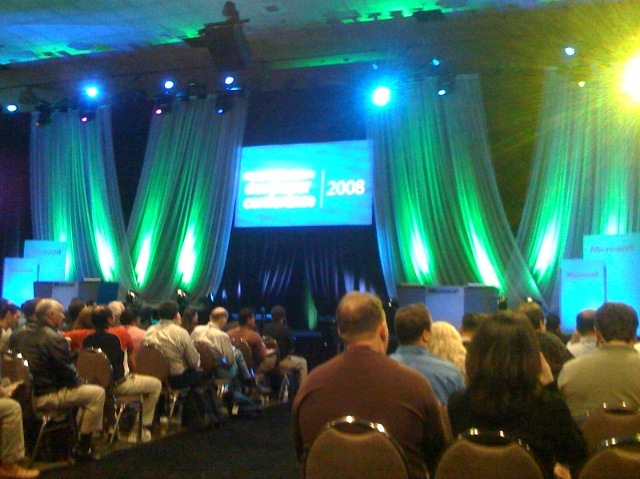
This was the room when we walked in…rotating slides with useless conference trivia. There were only about five so we practically memorized them. The most common name of attendees was Michael. I was able to snap that second shot at just the right moment to get the “logo” slide.


Okay, okay, so I could have used a zoom function. If I had a Windows Mobile cell phone, maybe its camera would have had that feature. I guess I should have brought my Canon. Anyway, you get what you get. Bill came out and they let people use flash photography for two minutes before they had to stop. See? The iPhone came in handy. I took these two shots well after those two minutes were up.


After some introductory words about the Office System Development platform, Bill showed a “retirement” video which seemed to be slightly different cuts of the version he showed at his CES keynote a few weeks ago. It was pretty funny and had some great celebrity cameos. Check out the version from CES on YouTube.
After this comedic break he continued on to talk about each of the three Office tiers: Client, Server, and Services. I’m so focused on SharePoint that only the server piece really interested me very much. He pushed workflow and BDC, which wasn’t much of surprise as those two things are some of the more powerful features of the product. He also really touted Visual Studio 2008 for its ability to aide in Office development. There were some demos of FedEx web services, the Office Live interface, and some apps that use the Office 2008 “ribbon”. For the most part it was just interesting to hear Bill talk about the history and future of Office and the direction the company is taking it in, which is truly innovative.
Finally, Bill came out to answer questions. While many of the questions were good, there was one guy who took a painful amount of time to ask a question that was basically just whining about turnaround times for SharePoint development service calls. I guess if I had gotten to ask Bill a question I wouldn’t have wasted it with something like that.

Other questions included “what’s going on with Yahoo?”, “what do you think of open source?” and “how is MS going to make it easier to develop custom apps in SharePoint as opposed to just writing a full-scale ASP.NET application?”
The answer to the Yahoo question was interesting. He pretty much said that it’s really all about scale, as in having a large enough chunk of the market to compete with the “single industry leader” (he never would say the word “Google”). So it wasn’t so much about the technology that Yahoo brings to the table as much as the user base.
For the open source question, Bill was very diplomatic, talking about the tiered licensing approach and comparing SQL Server to the new MySQL in this regard. Of course he’s really talking about “free” and not “open source”, but that’s not surprising that he would shift the answer more toward that direction. He said that there is a legitimate place for free (note he didn’t really say “open source”) software, but as a business it only make sense in the tiered model that he talked about. Essentially he just thinks it’s not a good idea to use any licenses that would prevent you from selling a version of the software in the future.
Anyway, the final question elicited an answer that was the neatest thing Bill said the whole time: in the next version of SharePoint, look for lists to be able to optionally correspond directly to SQL Server tables to make it easier to write more robust ASP.NET applications within SharePoint. Even some people at Microsoft said this was music to their ears.
Posted in Conferences | Comments (0)
Written on February 8, 2008 by Bryan
On Sunday I am leaving for San Jose with my team to attend the Microsoft Office System Developer Conference. In a few weeks I will also be going to the Microsoft SharePoint Conference in Seattle. I think both will prove to be highly valuable for me, especially since I am still relatively new to the whole platform and there is just so much to know. I’ll definitely be doing some blogs from the events, so stay tuned!
Posted in Conferences | Comments (0)
Written on February 7, 2008 by Bryan
That’s one of our sayings at work. “It’s not all about the web parts.” Before I got involved with SharePoint, I was kind of scared of it. I only knew about what little I had seen of it, and like many people seem to at first glance, I thought it was just another enterprise portal product. I figured that instead of widgets or gadgets or portlets or iViews it was just webparts. I think lots of people at our company still see it that way. They will learn, as I have, that it is not all about the web parts. It’s so much more.
In my brief experience with SharePoint so far I have learned quite a bit. I have focused mostly on development, writing a workflow here, a custom field type there, a couple of event handlers here and there. I have barely scratched the surface of attainable SharePoint knowledge. More than any other technology I have ever seen or worked with, finding information about SharePoint on the web is incredibly easy thanks to the emergence of the blog as a knowledge sharing resource. The various blogs listed to the right (among countless random others) have proven invaluable in my quest to know more about SharePoint. While I realize I am hardly a Microsoft MVP or even close to a SharePoint expert like many of those listed, I’m hoping there is room for yet another SharePoint related blog. I’m sure there will be at least a few things I will be able to share with the general WSS and MOSS community as I stumble through learning about this incredibly powerful and intimidating technology.
Posted in General | Comments (0)